
Putting the Quest 3 surface keyboard through its paces
Surface keyboard offers a glimpse into a possible future for spatial computing interfaces.

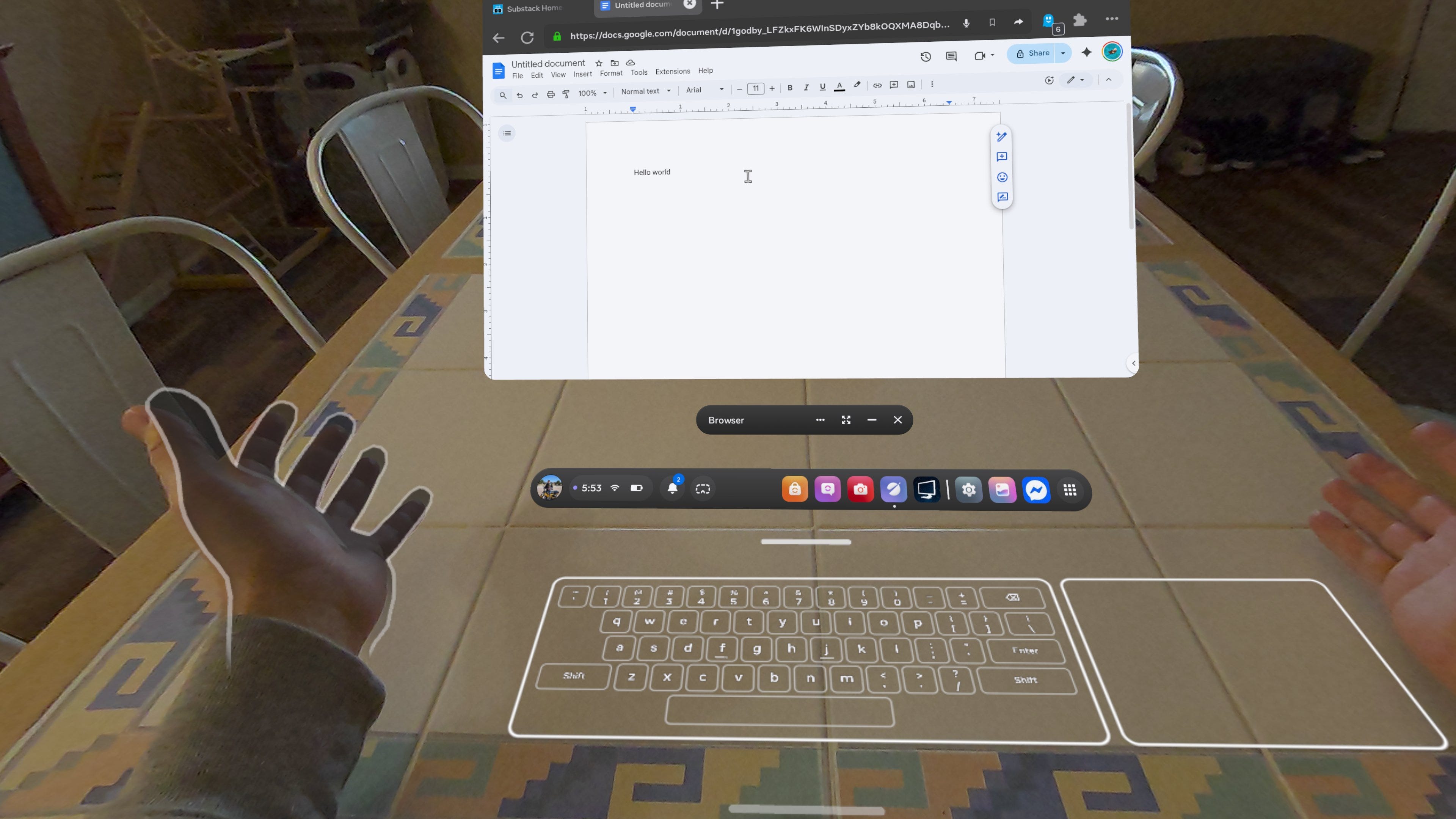
Typing has long been a point of friction in VR. Onscreen virtual keyboards often turn us into our grandparents, hunting and pecking with each index finger, one letter at a time.
Eye-tracked headsets with gaze-and-pinch interfaces might be more intuitive. Virtual keyboards also have swipe input options, which work about as well as their smartphone equivalents.
But in general, if you want to do any serious typing, you're better off connecting a Bluetooth keyboard and mouse to do it the old fashioned way.
Meta, however, has another idea: the surface keyboard.
The surface keyboard began rolling out to Public Test Channel users in v85. I only recently got it at the end of February in v2.1, following Meta's refresh of the Horizon OS numeration with Horizon OS 2.
After turning the feature on in the Experimental tab, you’re prompted to rest your hands on a flat surface for Quest to scan, generating a virtual QWERTY keyboard with an accompanying multi-touch trackpad that can be assigned to the right or left side of the keyboard. Currently, this feature can only be used in passthrough.
Who Needs a Mouse?
Pointer/cursor movement and clicking have always been sore spots on Quest. Hand tracking feels imprecise and slow. Gaze and pinch on the likes of Vision OS and Android XR are more intuitive and require less effort, but can still feel slow compared to the traditional mouse cursor with which we’ve had decades of practice.
For all the talk of how XR allows us to “embody” tech, the mouse can already feel like an extension of your body for the experienced computer user.
However, even against that established tech, the surface keyboard’s trackpad immediately impressed.
Getting the precision and control of a mouse movement without any prerequisite accessories is a game changer. Being able to easily select text, interact with web pages and move windows around makes Horizon OS feel like a more fully realized spatial desktop environment. It’s an experience I’m accustomed to already from using a Bluetooth keyboard with built-in trackpad, but now it can conceivably be done on the fly wherever you have a flat surface.
The trackpad does come with some quirks. It only seems to register your index finger for cursor movement, while your index finger and middle finger are needed for scrolling, and can be tapped simultaneously for a right click.
That probably corresponds to what most people use anyway, but I was surprised to realize that I’m actually accustomed to scrolling with my middle and ring fingers. It led to a moment of initial concern about the touchpad’s accuracy, before realizing I needed to change my scrolling habits.
After adjusting to this particularity, I found the trackpad surprisingly accurate, reliably discerning when I was within or without its perimeter. Occasionally it would fail to register, but when it comes to cursor movement and scrolling, a momentary loss in tracking is a minor inconvenience. The same can’t quite be said for typing.
QWERTY XR
Now for the main attraction: the keyboard. Typing on a hard surface adds tactility virtual keyboards have sorely lacked, even if it doesn’t quite capture the satisfying clickiness of real keyboard switches.
It reminds me of my time in middle and high school essentially ghost typing on my desk to relieve classroom boredom and practice my touch typing. Yes, I was a dork.
It’s also reminiscent of using Piano Vision on a flat surface instead of an actual piano, along with the same accompanying tracking pitfalls.
In the time since surface keyboard began rolling out, I’ve seen some folks put up impressive typing speeds on sites like Monkeytype. I wish I could report as much success, but despite having a 120 words-per-minute average across all test types on my profile, the best I could manage on surface keyboard was 94, and only in the simplest 10-word test.
Quest 3’s cameras can’t necessarily maintain a clear line of sight to all your fingers, which can obstruct each other, so some false inputs are inevitable. In particular, it seemed like unintentionally hitting the left shift was my most common mistake, which made regular word processing use a pain, although didn’t factor into my all-lowercase Monkeytype tests.
Exaggerating my typing with the sort of flourish you might associate with depictions of folks working on typewriters seemed to help the headset’s tracking and avoid errors. In other words, you can try holding your fingers a bit higher above the keys than you normally would.
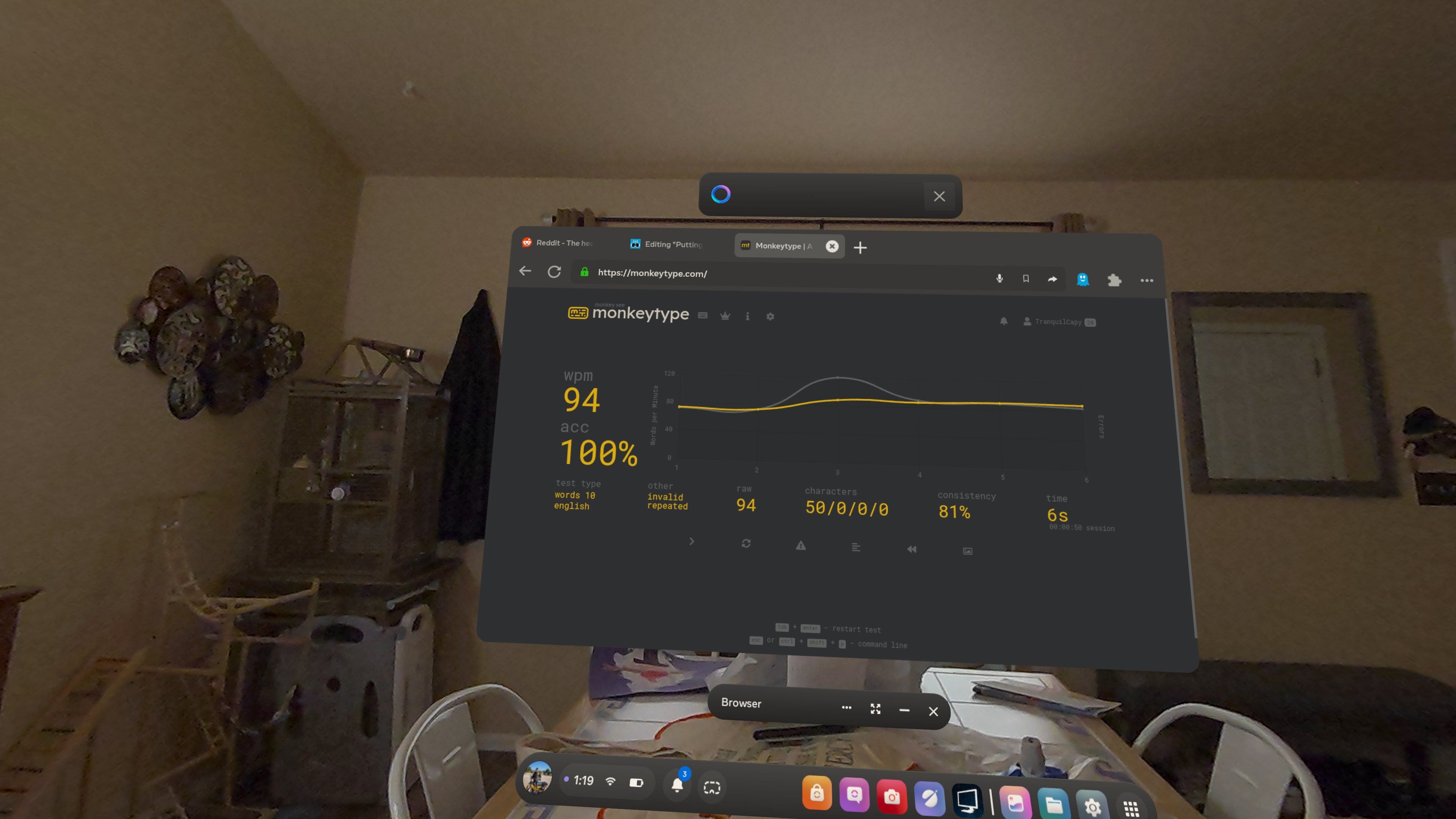
More testing is likely needed in different lighting and positions, but I was sitting in a well-lit dining room at a full-sized dining table. I can’t imagine my setup was much different than Meta’s ideal for end users.
Your mileage may vary and it’s absolutely worth trying for yourself. At the very least, it’s a useful option, adding flexibility for Horizon OS as a general spatial computing platform.
Quirks and Limitations
In its current iteration, there are some other caveats to bear in mind before you boot up the surface keyboard for yourself.
The keyboard only features letters and a number row, including alternate keys. There’s no Ctrl, Alt or Windows (Horizon?) keys, or any of the other modifier or function keys you’d expect of a physical keyboard.
Instead, you have a preview text box floating above your keyboard, with a row of options underneath. You can open a screen for additional alternate keys, another for emojis, and there are dedicated buttons for Copy, Paste and Cut.
A bottom-left icon allows you to regenerate the surface keyboard. A bottom-right one disables it. The gear-shaped icon opens up the expected settings page, where you can adjust trackpad placement, cursor size and cursor speed.
In absence of arrow keys on the surface keyboard, you can move between characters using arrows next to the preview text box.
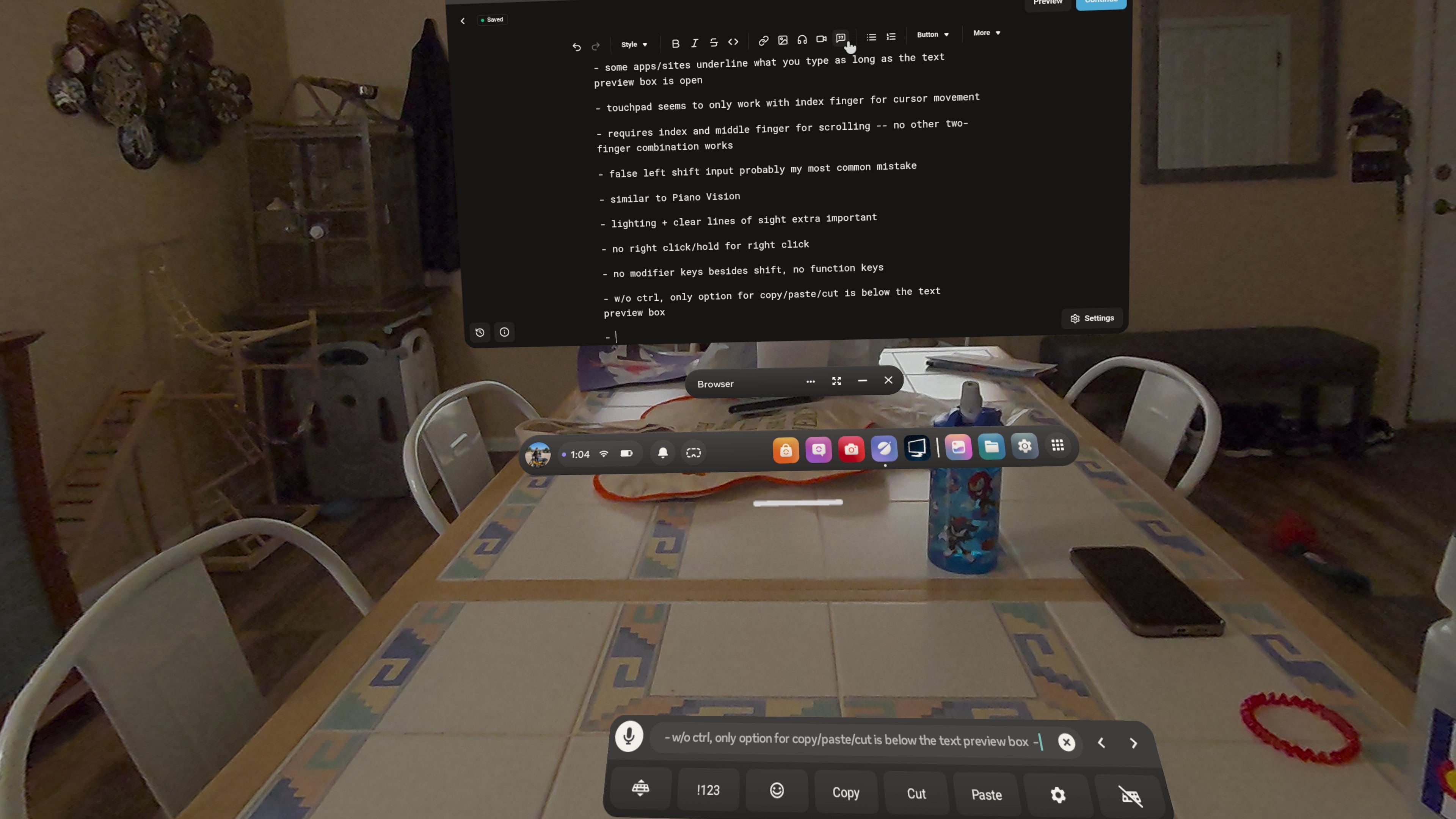
While this floating text box is a useful extension of the surface keyboard, it also presents some of its greatest flaws that harken back to my long-standing frustrations with word processing on Quest.
On certain web pages, anything you type while the preview text box is open is underlined, seemingly as if it’s still only a preview of what you’ve typed. You need to either close the text box ahead of time or after you’ve finished typing to properly enter it into the field.
Closing the text box is also more roundabout than it is normally. Gone is the usual X icon from the upper-right corner. Instead, I found you have to open either the emoji or alternate keys menu, and then click a bottom-right X icon to close the whole box. This became an annoying routine in between Monkeytype tests.
Normally with a Bluetooth keyboard, the text box likes to pop up right in front of where you’re trying to type. Even if you move it out of the way, it’ll often pop back up in an inconvenient spot, forcing you to close or move it again.
With surface keyboard, it’s not as intrusive, as it’s rendered in a specific position floating closely above your surface keyboard. But this can feel like a poor use of space, overlapping with your window or the Universal Menu, at least on my particular pre-Navigator PTC 2.1 variation of Horizon OS.
The text box feels like a carryover from mobile, rather than something you’d associate with true full-featured personal computing. Given the traditional inaccuracy of virtual keyboards and the need to avoid crowding an interface meant for touch inputs, it does make sense to add features like text previewing and dedicated menus for additional characters and emojis.
But for folks trying to use surface keyboard with Horizon OS for true spatial computing, these can feel like unwelcome points of friction that don’t gel with the typing experience and level of system control users are accustomed to when using a mouse and keyboard on a computer.
Conclusion
I wish I could say I wrote this whole article using surface keyboard, as I often like to utilize XR for my writing. I did do my initial note-taking with the surface keyboard, albeit with little regard for spelling or capitalization. For the rough draft, I settled on one of my go-to spatial productivity setups: Samsung DeX displayed on my Xreal 1S glasses paired with a Bluetooth keyboard and trackpad. I completed final revisions, formatting and scheduling on an old Galaxy Book, recently adopted from my wife after we pre-ordered her a MacBook Neo as an upgrade.
I’ll absolutely be returning to surface keyboard in the future to see its ongoing development. I can only imagine how much better something like this would be when paired with Meta’s Neural Band. It’s hard to imagine they’ll bundle two of them with their upcoming Project Phoenix MR headset, but it’s possible, especially if they see surface keyboard as crucial to their spatial computing vision. Though many users will likely still prefer breaking out their trusty mice and keyboards.